> ## Documentation Index
> Fetch the complete documentation index at: https://docs.prometheusprotocol.org/llms.txt
> Use this file to discover all available pages before exploring further.
# Overview
> Connect your AI agent to a universe of trusted, verified tools from the Prometheus App Store.
Welcome! This guide is for anyone who wants to connect an AI application to the powerful, verified services available in the Prometheus App Store.
The core problem for any advanced AI is trust. How can your agent safely use a third-party tool without risking data integrity or security? The Prometheus Protocol solves this by providing a decentralized App Store of services that have undergone a rigorous, on-chain verification process.
There are two primary ways to connect to these services, depending on your needs.
The most common method. If you use an application that already supports MCP,
you just need to find a service and follow the guided setup.
For advanced integration, you can use our TypeScript SDK to build a native
MCP client directly into your application.
***
### Connecting via an Existing Application
Dozens of popular AI applications and developer tools already support the Model Context Protocol (MCP). This includes clients like:
* Claude (Desktop & Code)
* Cursor
* Gemini CLI
* Raycast
* VS Code (via extensions)
* And many more...
For these applications, the process is incredibly simple, as the App Store provides tailored instructions for each one.
Browse the **[Prometheus App Store](https://prometheusprotocol.org)** to
find a service with the tools your agent needs.
On the service's detail page, click the prominent **Connect** button. This
will open a modal window with specific setup instructions.
Inside the modal, you'll see a series of tabs for different MCP clients
(e.g., Cursor, VS Code, Claude Desktop). Select the tab corresponding to
your application.
The App Store will provide the exact steps and, in most cases, a
pre-configured JSON snippet for you to copy and paste directly into your
application's settings.
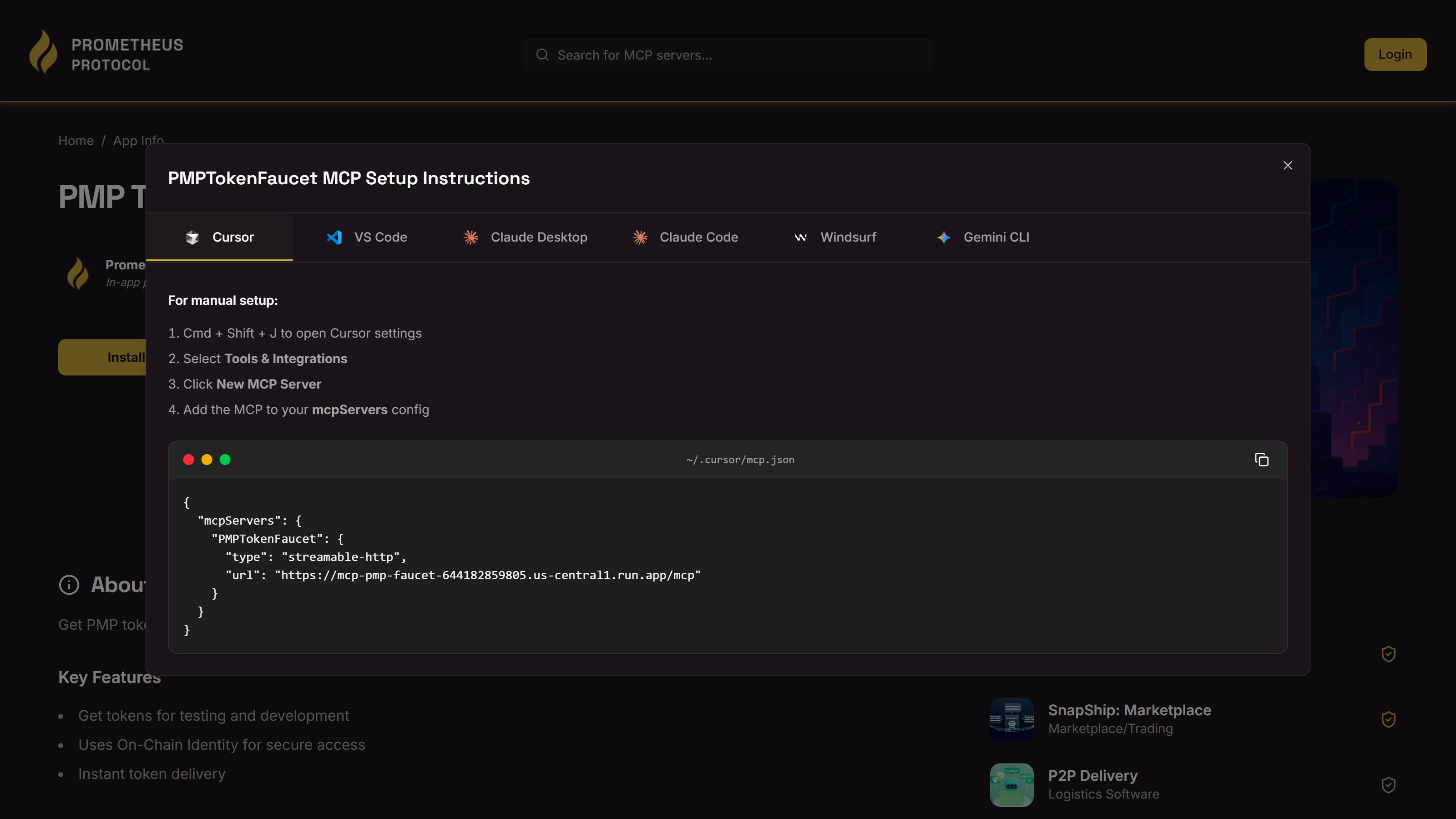 The 'Connect' modal provides specific, copy-pasteable instructions for each
supported MCP client.
***
### Building a Custom MCP Client (Advanced)
If you are developing your own AI agent or application from scratch, you can implement a native MCP client for the deepest level of integration.
The `@modelcontextprotocol/sdk` provides the necessary tools:
```bash theme={null}
npm install @modelcontextprotocol/sdk
```
All Prometheus-verified services use a `StreamableHTTPClientTransport`. The following code snippet is the correct way to establish a connection, including a fallback to the older SSE transport for compatibility.
```typescript theme={null}
import { Client } from '@modelcontextprotocol/sdk/client/index.js';
import { StreamableHTTPClientTransport } from '@modelcontextprotocol/sdk/client/streamableHttp.js';
import { SSEClientTransport } from '@modelcontextprotocol/sdk/client/sse.js';
async function connectToService(url: string) {
const baseUrl = new URL(url);
let client: Client | undefined = undefined;
try {
// Primary Method: Streamable HTTP
client = new Client({
name: 'my-custom-agent',
version: '1.0.0',
});
const transport = new StreamableHTTPClientTransport(baseUrl);
await client.connect(transport);
console.log('Connected using Streamable HTTP transport');
} catch (error) {
// Fallback Method: SSE
console.log(
'Streamable HTTP connection failed, falling back to SSE transport',
);
client = new Client({
name: 'my-custom-agent-sse',
version: '1.0.0',
});
const sseTransport = new SSEClientTransport(baseUrl);
await client.connect(sseTransport);
console.log('Connected using SSE transport');
}
return client;
}
```
Once connected, you can use the `client` object to interact with the service's tools, prompts, and resources as shown in the **[MCP TypeScript SDK reference](https://github.com/modelcontextprotocol/typescript-sdk)**.
The 'Connect' modal provides specific, copy-pasteable instructions for each
supported MCP client.
***
### Building a Custom MCP Client (Advanced)
If you are developing your own AI agent or application from scratch, you can implement a native MCP client for the deepest level of integration.
The `@modelcontextprotocol/sdk` provides the necessary tools:
```bash theme={null}
npm install @modelcontextprotocol/sdk
```
All Prometheus-verified services use a `StreamableHTTPClientTransport`. The following code snippet is the correct way to establish a connection, including a fallback to the older SSE transport for compatibility.
```typescript theme={null}
import { Client } from '@modelcontextprotocol/sdk/client/index.js';
import { StreamableHTTPClientTransport } from '@modelcontextprotocol/sdk/client/streamableHttp.js';
import { SSEClientTransport } from '@modelcontextprotocol/sdk/client/sse.js';
async function connectToService(url: string) {
const baseUrl = new URL(url);
let client: Client | undefined = undefined;
try {
// Primary Method: Streamable HTTP
client = new Client({
name: 'my-custom-agent',
version: '1.0.0',
});
const transport = new StreamableHTTPClientTransport(baseUrl);
await client.connect(transport);
console.log('Connected using Streamable HTTP transport');
} catch (error) {
// Fallback Method: SSE
console.log(
'Streamable HTTP connection failed, falling back to SSE transport',
);
client = new Client({
name: 'my-custom-agent-sse',
version: '1.0.0',
});
const sseTransport = new SSEClientTransport(baseUrl);
await client.connect(sseTransport);
console.log('Connected using SSE transport');
}
return client;
}
```
Once connected, you can use the `client` object to interact with the service's tools, prompts, and resources as shown in the **[MCP TypeScript SDK reference](https://github.com/modelcontextprotocol/typescript-sdk)**.